Afraid that 10 years of drawings could vanish overnight? This one's for you.
Three years ago, my iPad bricked during an update.
There wasn't enough storage left.
Tiny bead of sweat.
The one app that refused to reinstall was the only one I used: Procreate.
It's a fantastic drawing app, and the price is a joke compared to Adobe subscriptions.
iCloud auto-backup is an option.
Good idea.
That's what I had done.
Clearly, it wasn't enough.
Throwing the device out the window wouldn't have helped — but the urge was definitely there.
There were 10 years of drawings on that thing. Losing them wasn't an option.
Digging through the settings, I realised the app was taking up 200GB. Imagine owning a Twingo that weighs as much as a fully-loaded tanker truck.
Something was wrong. A 256GB iPad.
3GB for iOS, 200GB for Procreate. That should leave a solid 50GB, right?
Nope. Not enough.
First reinstall.
I had drawing projects due the next day, so I borrowed my girlfriend's tablet to get the work done.
Turns out, when you try to reinstall, every third-party app (and I have a lot of junk) was blocking Procreate and its 200 freaking gigabytes from launching.
Three days go by. Procreate won't install at all.
Second reinstall.
I start deleting non-essential apps one by one, trying to free up enough space for Procreate to run.
I wasn't fast enough.
The install failed again.
Third reinstall.
Five days have passed since the first two attempts.
We are at war.
This time would be different.
I dedicated my entire day to this: deleting apps like my life depended on it. I checked my iPad every 10 minutes, watching the available space.
48-hour siege.
Not much sleep.
But I made it.
Procreate and all my old projects were finally back on my tablet after 8 brutal days.
This is why you should never let your drawings pile up inside Procreate. Here's how to avoid the same nightmare.
The Problem with Procreate's Auto-Backup
Procreate is an incredible app for drawing on iPad, but its file system leaves a lot to be desired. Unlike other software like Photoshop or Affinity, where you can choose where to save your files, Procreate stores everything internally. The result? You can't:
-
Search through your files,
-
Create sub-folders to organise your work,
-
Sync your projects automatically across multiple devices.
On top of that, auto-backup only works within the app itself, with no easy way to export to the cloud.
A Simple Fix: Manual Export
To work around these limitations, the most reliable method is to export your files after every session. Here's a workflow that works:
-
Export as .PSD : This Photoshop format is compatible with most software (Procreate, Photoshop, Affinity, etc.). Before exporting, delete any unnecessary layers and merge whatever you can — it'll shrink your file sizes considerably.
-
Export as .PNG : Use "Save Image" to grab a time-stamped version of your drawing. You can do the same for your stencil layer if you want to keep it handy. The files will show up in the Photos app, though they can be tricky to find years down the line.
-
Save to the cloud : Whether it's iCloud, Google Drive, or another service, storing your files online lets you access them from any device.
-
Name your files properly : A solid naming system makes searching a breeze later. For example, typing "fox" into your iCloud search will instantly pull up every fox drawing you've made over the years.
After each export, I recommend deleting the files from Procreate to keep the app lean.
Choosing the Right Cloud Service
Since Procreate doesn't offer automatic sync, here are a few reliable alternatives to keep your work safe:
-
iCloud : Perfect for Apple users, it integrates seamlessly with macOS and iOS.
-
Google Drive : A solid choice if you need a cross-platform service that's easy to access.
-
Dropbox : A favourite among creatives, with advanced sync and sharing features.
Final Thoughts
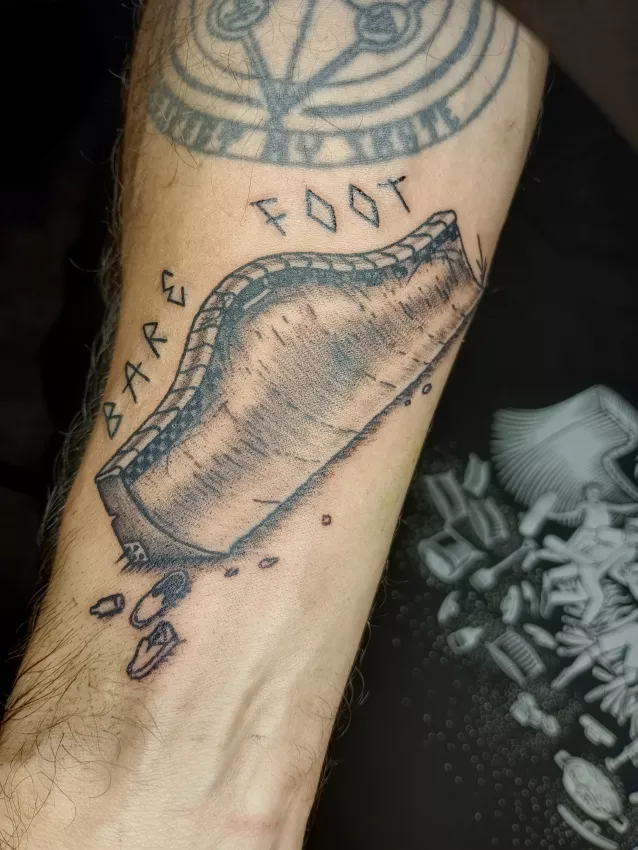
Backing up a drawing obviously does not make it tattooable. That step from design to skin is something we work on in our training courses in Grenoble.
As powerful as Procreate is, you shouldn't blindly trust it with your file management. Building a good export routine and using a cloud service will keep your work safe and save you a ton of frustration. Take a few seconds at the end of each session to save your drawings somewhere outside Procreate — your future self will thank you.